


End of customer support service
・ The information on this page is as of Feb 2023,
・ The contents on this page are subject to change or delete without notice.
Features
What's Movie Uploader ?
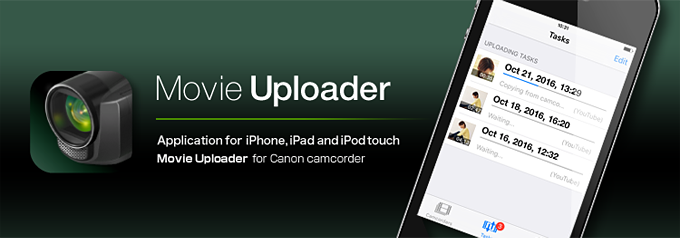
With Movie Uploader, you can upload movies and pictures, which are recorded by Canon camcorder that employs Wi-Fi (wireless LAN) function, to YouTube™ and Facebook® using the iOS devices such as iPhone®, iPad®, and iPod touch®.
Also you can store such movies and pictures in the Library of your iOS device.
Connection and basic operation
- Configure the camcorder and connect it to your iOS device.*1
Refer to the camcorder's instruction manual for camcorder setting.
- Start Movie Uploader .
Your camcorder will appear on the screen.*2
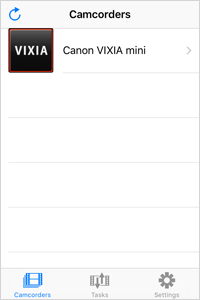
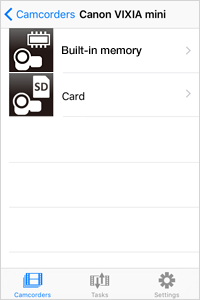
- Select the media.
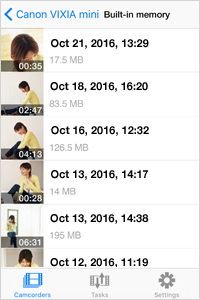
- Select the movie and/or pictures in the camcorder to upload and save.
- * Only MP4 and JPEG files can be played back.
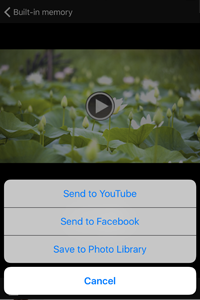
- Tap the action button and choose the option from "Send to YouTube", "Send to Facebook", and "Save to Photo Library".*3
-
Send to YouTube™ / Send to Facebook®
- Enter the title and other items then tap [Upload].
Caution
Note for HF M50/HF M52/HF M56/HF M60/HF R30/HF R32/HF R36/HF R37/HF R38 users
When connecting the camcorder via ad-hoc, connect the iOS device to the same Wi-Fi network as the camcorder (infrastructure connection) then upload files first.
This procedure registers the YouTube™/Facebook® account information used for Movie Uploader and enables you to upload files by connecting the network such as a hotspot via ad-hoc. Note for the other model users Follow the procedures below when uploading to YouTube™/Facebook® from Movie Uploader for the first time: 1. Connect your iOS device with the camcorder through a Wi-Fi network which can access to the Internet. Make sure to put the camcorder's connection setting to "Media Server". 2. Start Movie Uploader and log on to YouTube™/Facebook® with your account then upload a content. Once you upload, Movie Uploader stores your YouTube™/Facebook® accounts. Save to Photo Library - Saving starts immediately.
- Configure the Wi-Fi network if needed. *4
Viewing
The list of movies and pictures in the camcorder are displayed.
Sharing
Send to YouTube™
You can upload the movies (MPEG-2, MP4) in the camcorder to YouTube™.
Send to Facebook®
You can upload the movies (AVCHD, MPEG-2, and MP4) and pictures (JPEG) in the camcorder to Facebook®.
Save to Photo Library
You can save the movies (MP4) and pictures (JPEG) to the Library of your iOS device.
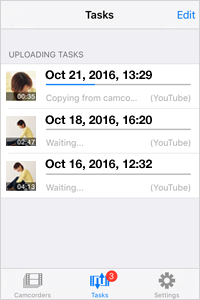
*2 If the camcorder is not displayed, reload after checking if the camcorder and the iOS device are connected to the same Wi-Fi network.
*3 If the language in your iOS device is Chinese(Simplified), uploading to YouTube™/Facebook® are not available.
*4 Configuration of Wi-Fi is required when connecting through Ad Hoc or Personal Hotspot. If you don't change the configuration, you will not be able to use the Internet through Wi-Fi because your iOS device stay connecting to the Wi-Fi network that cannot connect to the Internet.
* Apple, Apple logo, and Mac OS are trademarks of Apple Inc., registered in the U.S. and other countries.
* iPhone, iPad, iPod touch are the registered trademarks of Apple Inc.
* The trademark of iPhone is used based on the license with AIPHONE CO., LTD.
* Company names and brand names referred to in this page are trademarks, registered trademarks, and products of the respective companies.
* Screens and figures are only for illustrative purposes.
